

Loading Data#
Long and Wide Form#
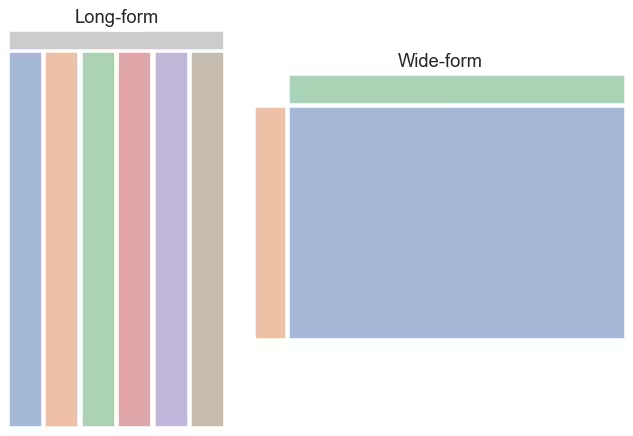
Left hand image long-form, right hand image wide-form#
From the Seaborn documents.
Data should be in long format, this means that every column refers to a variable, and every row is the observed data. This follows the format of most databases.
year
month
passengers
0
1949
Jan
112
1
1949
Feb
118
2
1949
Mar
132
3
1949
Apr
129
4
1949
May
121
See how data is repeated within the year column, the month column repeats for each year.
Not all data arrives in this format, often it is in wide format. This means that the first row and first column are both variables and each cell is data. When there is a large number of variables then the long form is superior, but the wide form is probably easier to visualise as a table with two or three variables.
month
Jan
Feb
Mar
Apr
May
Jun
Jul
Aug
Sep
Oct
Nov
Dec
year
1949
112
118
132
129
121
135
148
148
136
119
104
118
1950
115
126
141
135
125
149
170
170
158
133
114
140
1951
145
150
178
163
172
178
199
199
184
162
146
166
1952
171
180
193
181
183
218
230
242
209
191
172
194
1953
196
196
236
235
229
243
264
272
237
211
180
201
None of the year or month data is repeated, but then the name passengers has been lost.
If data has to be converted to long format it might only need a simple
transformation such as a table pivot or transpose. More complex changes may
need the Pandas method pandas.DataFrame.melt().
For a more comprehensive discussion see Long-form vs. wide-form data
Data Loading#
Data can be loaded directly by typing it in, which probably applies to practice sessions, or more likely directly from a saved file. The structure is similar to treeview, there are columns with a header and rows of data, which can be expanded down the page. As a practical limit keep the number of columns to the screen width, although many tutorials have much larger sizes:
import pandas as pd

# create a dictionary
data = {'Product': ['Tablet','Printer','Laptop','Monitor'],
    'Price': [250,100,1200,300]
    }

# load directly into dataframe
df = pd.DataFrame(data)
# the dictionary keys become columns
print(df)

   Product  Price
0   Tablet    250
1  Printer    100
2   Laptop   1200
3  Monitor    300
Note that a dictionary is usually a wide format although with only two keys and columns it could be mistaken for a long format, see also melt.
The dataframe easily produces a list:
products_list = df.values.tolist()
print(products_list)

[['Tablet', 250], ['Printer', 100], ['Laptop', 1200], ['Monitor', 300]]
Iteratively appending rows to a DataFrame can be more computationally intensive than a single concatenate. A better solution is to append those rows to a list and then concatenate the list with the original DataFrame all at once:
df1 = pd.DataFrame({'Product': ['Tablet','Printer','Laptop'],
    'Price': [250,100,1200]})

df2 = pd.DataFrame({'Product': ['Monitor'], 'Price': [300]})

# append is deprecated
# df3 = df1.append(df2, ignore_index=True)
df3 = pd.concat([df1, df2], ignore_index=True)
df3
   Product  Price
0   Tablet    250
1  Printer    100
2   Laptop   1200
3  Monitor    300
When concating use the same columns names, ignore_index=True is required or else the index no longer has unique values, alternatively load a list:
l1 = ['Mouse', 10]

# locate the end of the dataframe
# df3 is overwritten
df3.loc[len(df3)] = l1
df3
   Product  Price
0   Tablet    250
1  Printer    100
2   Laptop   1200
3  Monitor    300
4    Mouse     10
Load csv data directly from disk or from a known URL source:
df = pd.read_csv("file_path/beer_list.csv")

url = 'https://raw.githubusercontent.com/Vibe1990/Netflix-Project/main/netflix_title.csv'
df = pd.read_csv(url)
Other formats are accessible although additional dependancies might be necessary
- Jason
read_json()
- HTML
read_html()
- XML
read_xml()
- SQL
read_sql()
- Excel
read_excel()